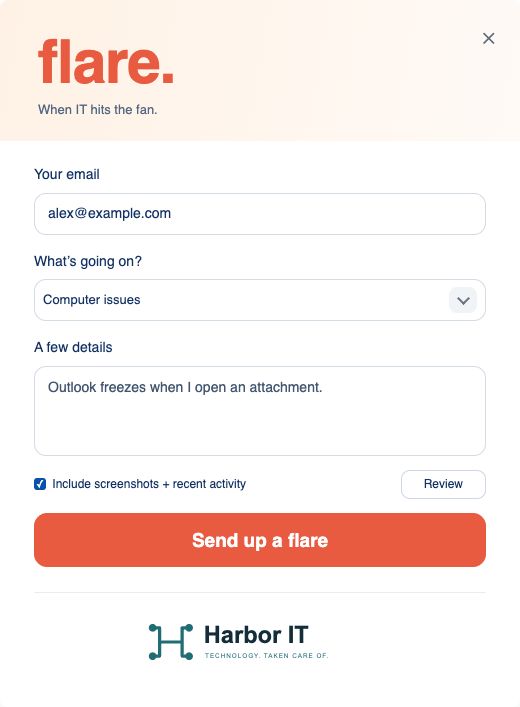
When a screen freezes or a printer stops responding, employees need an easy way to ask for help. Flare opens on their computer, collects the details they provide, and sends the request into your help desk with evidence your technicians can use.
Press F9 on Windows to open Flare. On Mac, use Control–Option–F or the menu bar. No separate physical button is required. Staff register with their work email, choose an issue, and describe what happened.
Submit a ticket with the clues attached
A diagnostic flare gathers the computer details and checks available on its platform. Users can review screenshots and remove individual images, or leave screenshots and recent activity out. IT receives a private diagnostic report alongside the Halo ticket.
Service requests have their own path
For access, setup, or other help, users choose Request a service. Flare submits their written request without a diagnostic report, screenshots, or recent activity.
Follow up without repeating the request
After Halo confirms delivery, the user sees the ticket number and can open the ticket. Optional Impact and Urgency update the ticket; an optional mobile number updates their Halo contact so support can call back.
Roll out to the computers you support
Internal IT teams can deploy Flare through their RMM or MDM using the installers and commands in Relay. MSPs can use the same workflow across client companies, manage connected computers, and keep their support contacts visible in the app.